Sometimes we need the lots of components, sensors, modules using the UART interfaces to communicate with the Raspberry Pi.
Post in Medium: https://medium.com/@jason19970210/raspberry-pi-4-with-multiple-uart-interface-4eac75f74d7c
Environment
- Hardware : Raspberry Pi 4 Model B (BCM2177*) ref
- Operation System : Respbian Linux 11
- CPU Arch: armv7l
There are 2 types of UART interface existed on Raspberry Pi, mini UART & PL011 UART.
By default, /dev/ttyS0 maps to mini UART; on the other hand, /dev/ttyAMA0 maps to PL011 UART.
Software Setup
$ sudo su
$ vim /boot/config.txt
add following lines at the end of the file:
# enable serial interface
enable_uart=1
dtoverlay=uart0
dtoverlay=uart1
dtoverlay=uart2
dtoverlay=uart3
dtoverlay=uart4
dtoverlay=uart5
Save, exit & Reboot !!
Check system open the serial by command $ ls -al /dev/ttyAMA*
$ ls -al /dev/ttyAMA*
crw-rw---- 1 root dialout 204, 64 Dec 16 16:01 /dev/ttyAMA0
crw-rw---- 1 root dialout 204, 65 Dec 16 16:01 /dev/ttyAMA1
crw-rw---- 1 root dialout 204, 66 Dec 16 16:01 /dev/ttyAMA2
crw-rw---- 1 root dialout 204, 67 Dec 16 16:01 /dev/ttyAMA3
crw-rw---- 1 root dialout 204, 68 Dec 16 16:01 /dev/ttyAMA4
Let’s take a look into the Raspberry Pi 4 Model B GPIO Pinout:
Figure 1: image not reproduced here (source: raspberrypi.com).
GPIO Pinout : https://www.raspberrypi.com/documentation/computers/os.html#gpio-and-the-40-pin-header

Hardware Setup
Raspberry Pi Pin pair with UART:
           TXD       RXD         Communication Port
uart0 :  GPIO 14    GPIO 15         /dev/ttyAMA0
uart1 :  GPIO 0     GPIO 1          /dev/ttyAMA1
uart2 :  GPIO 4     GPIO 5          /dev/ttyAMA2
uart3 :  GPIO 8     GPIO 9          /dev/ttyAMA3
uart4 :  GPIO 12    GPIO 13         /dev/ttyAMA4
PC setup with USB-to-UART Adapter :
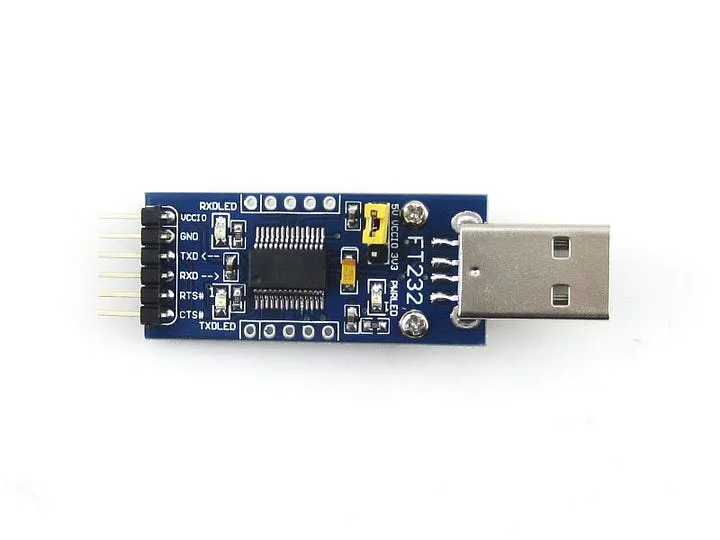
FT232 : https://www.waveshare.com/ft232-usb-uart-board-type-a.htm
Please make sure GND is connected correctly !
USB-to-UART TXD connect to Raspberry Pi uart RXD GPIO Pin
USB-to-UART RXD connect to Raspberry Pi uart TXD GPIO Pin
Take uart3 for example:
USB-to-UART TXD <--> GPIO 8
USB-to-UART RXD <--> GPIO 9
USB-to-UART GND <--> GND
Implementation
Once finish setup, open a serial console on PC (ex. Putty) with correct COM Port (ex. COM3) & Baud Rate set to 115200
Then open a terminal in Raspberry Pi, send message from CLI to PC :
$ echo 'hello' > /dev/ttyAMA3
This command should send the string hello to PC via /dev/ttyAMA3 , then the string will be parsed by PC, finally display on serial console.
Hope this article can help those makers connect more devices via multiple UART interfaces !!
Cover photo by Dawid Zawiła on Unsplash